Welcome to EasifyMe
If you’re looking to resize your photos for a website, social media, or a professional portfolio without that annoying blurriness, this guide will show you exactly how to do it in seconds without spending a dime.
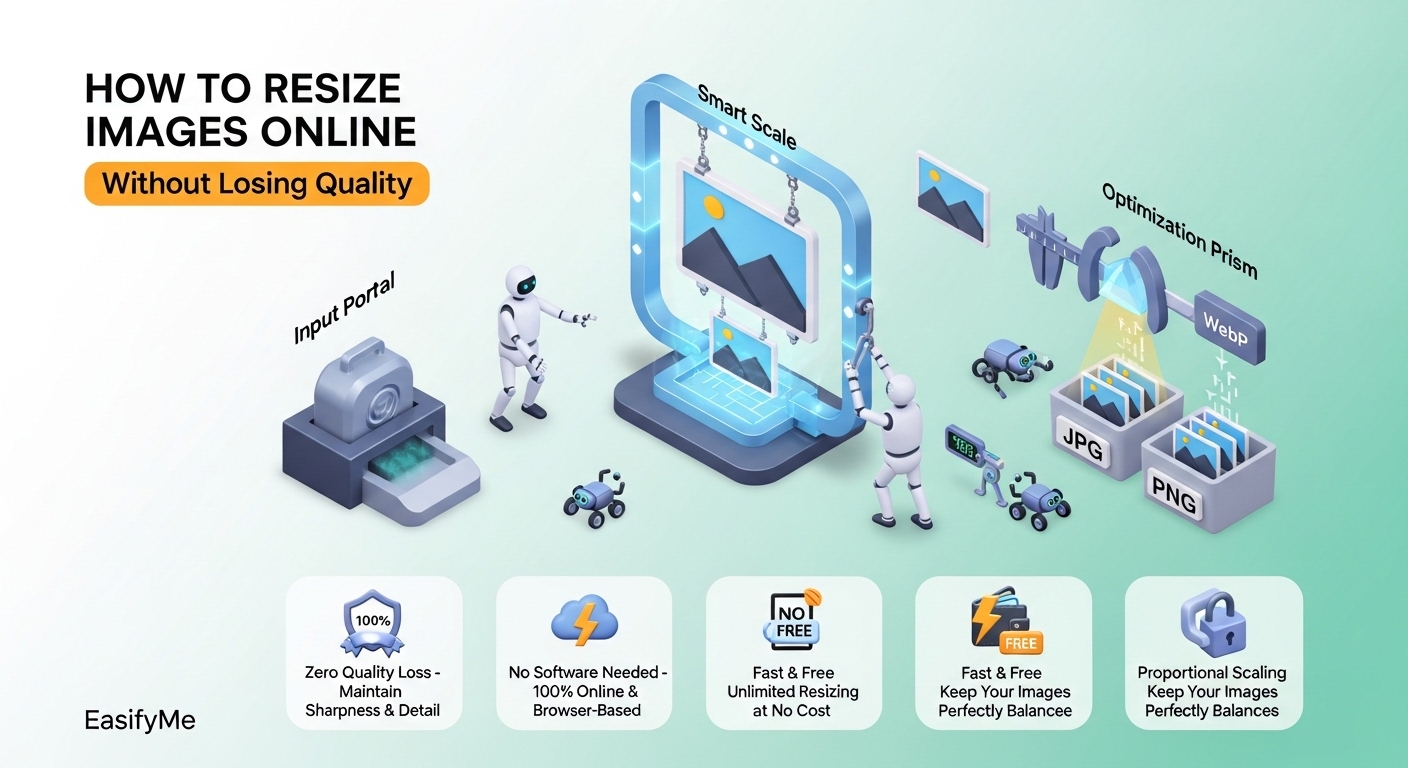
When you need to resize images online without losing quality, the secret lies in using the right interpolation algorithms and choosing the correct file formats. In 2026, you no longer need heavy software like Photoshop to achieve crisp, high-resolution results. EasifyMe.com provides a browser-based suite that handles the heavy lifting, ensuring your free image resizer online no quality loss experience is seamless and professional.
Why Image Resizing Quality Matters for SEO and UX
In the current digital landscape, page speed is everything. However, many people make the mistake of "squishing" images using HTML code or basic editors, which results in jagged edges and pixelation.
Optimizing your visuals isn't just about making them smaller; it’s about maintaining the Largest Contentful Paint (LCP) scores for Google’s Core Web Vitals. If your images are blurry, your brand looks unprofessional. If they are too large, your site crashes. Finding that "Goldilocks" zone of perfect dimensions and zero quality loss is essential for anyone from digital marketers to casual bloggers.
How to Resize Images Without Losing Resolution: A Step-by-Step Guide
Most users struggle with "pixel stretching." When you enlarge a small photo, the software has to "guess" what the new pixels should look like. To maintain image quality while resizing, follow these proven steps using our online tools.
Step 1: Start with the Right Format
Before you even click "Resize," check your file extension.
PNG is best for graphics with text or transparency.
JPG is ideal for photographs.
WebP is the 2026 industry standard for the best quality-to-size ratio.
Step 2: Use the EasifyMe Image Editor
Our EasifyMe Image Editor makes this step effortless. Here is a mini-tutorial:
Upload: Drag and drop your image into the workspace.
Toggle Aspect Ratio: Always keep the "Lock Aspect Ratio" box checked. This prevents your photos from looking "stretched" or "squashed."
Input Dimensions: Enter your target width. Our tool automatically calculates the height to preserve the original proportions.
Download: Save your new image in your preferred format instantly.
Step 3: Optimize for the Web
If your goal is to optimize images for web without quality loss, resizing is only half the battle. You should also run your resized file through our [Link to EasifyMe SEO Tools] suite to ensure the metadata is clean and the file size is under the recommended 100KB threshold.
Technical Comparison: Resizing Methods
| Method | Quality Retention | Best For | Speed |
| HTML Scaling | Poor (Blurry) | Quick previews only | Instant |
| Bicubic Resampling | Excellent | Professional Photos | Fast (on EasifyMe) |
| AI Upscaling | Best for Enlarging | Low-res originals | Moderate |
| Basic Cropping | Perfect (No Loss) | Changing focus/ratio | Instant |
Common Image Formats for 2026
| Format | Compression Type | Transparency | Best Use Case |
| WebP | Lossless/Lossy | Yes | High-speed websites |
| AVIF | Advanced Lossy | Yes | Next-gen web graphics |
| PNG-24 | Lossless | Yes | Detailed logos & icons |
| JPEG | Lossy | No | Social media posts |
Expert Insights on Image Optimization
Having handled thousands of image assets for high-traffic websites, our team has identified a few Expert Insights and Common Pitfalls you must avoid:
Never Upscale More Than 20%: Unless you are using a dedicated AI Upscaler, enlarging a photo beyond its original dimensions will always lead to quality loss. If you need a larger image, find a higher-resolution source.
The "Double Compression" Trap: Avoid resizing a JPEG that has already been heavily compressed. Every time you save a JPEG, it loses a bit of data. Always perform your edits on the original "Master" file.
Use WebP for Everything: In 2026, there is almost no reason to use JPEG for web design. WebP offers 30% better compression than JPEG at the same quality level.
Check Your DPI: For the web, 72 DPI (Dots Per Inch) is the standard. Anything higher (like 300 DPI) just adds unnecessary weight to your file without improving how it looks on a screen.
Personalized Resizing Strategies
For Developers 💻
If you're building a responsive site, don't just provide one image. Use our bulk image resizer online free to create a "srcset" of images (thumbnail, medium, large). This ensures your site serves the smallest possible file based on the user's screen size, significantly boosting your mobile SEO.
For Content Creators ✍️
Social media platforms change their dimension requirements constantly. Use EasifyMe to quickly resize photos online without software to fit Instagram’s 1080x1350 vertical crop or YouTube’s 1280x720 thumbnail size. Doing this in the browser saves you from opening heavy editing apps for a 10-second task.
For Small Businesses 📈
Product photos make or break an e-commerce store. Use our tools to reduce image size without losing quality online so your Shopify or Amazon pages load instantly. A 1-second delay in load time can cost you 7% in conversions—don't let heavy images be the reason you lose a sale.
Massive FAQ: Your Resizing Questions Answered
How can I resize an image without it getting blurry?
To avoid blurriness, always use a tool that utilizes high-quality resampling filters like Bicubic or Lanczos. More importantly, ensure you are downsizing rather than upscaling. Shrinking an image typically preserves all the perceived detail, whereas enlarging it forces the software to create "fake" pixels, resulting in a soft or blurry look.
What is the best free image resizer with no quality loss in 2026?
EasifyMe.com is widely considered one of the best options because it is 100% free, requires no signups, and uses advanced browser-side processing. This means your images are processed locally in your browser for maximum speed and privacy, ensuring that the original clarity is maintained throughout the process.
Can I resize multiple images at once (Bulk Resizing)?
Yes! Our bulk image resizer online free allows you to drag and drop dozens of files simultaneously. You can set a uniform width or height, and the system will process them all in a single batch, saving you hours of manual work while maintaining consistent quality across your entire gallery.
Does resizing an image change its file size?
Yes, resizing the physical dimensions (pixels) of an image almost always reduces the file size (KB/MB). By reducing the number of pixels the computer has to store, you make the file lighter. To further compress and resize images online free, you can adjust the quality slider on EasifyMe to find the perfect balance.
Is it safe to upload my private photos to online resizers?
With EasifyMe, your privacy is a priority. Because our tools are browser-based, the "upload" is often just a local interface action—your data stays within your session. Furthermore, our No Signups policy means we don't track who you are or store your personal photos on our servers long-term.
What are the best dimensions for website images?
For a standard full-width blog hero image, 1200px to 1920px wide is ideal. For images within the content body, 600px to 800px is usually sufficient. Using our tool to optimize images for web without quality loss ensures these specific dimensions look sharp on both Retina displays and standard monitors.
Easify Your Life: The Verdict
Resizing shouldn't be a headache. Whether you are trying to resize photos online without software for a school project or you need to compress and resize images online free for a corporate website, EasifyMe is the most efficient tool in your arsenal.
By following the steps in this guide—starting with high-quality originals, locking your aspect ratio, and choosing the WebP format—you can ensure your visuals are always crisp and professional.
Stop struggling with complex software and bloated websites. Visit EasifyMe.com now and use our Image Editor to get the perfect dimensions in one click. It’s fast, it’s free, and it’s built for the way you work in 2026.