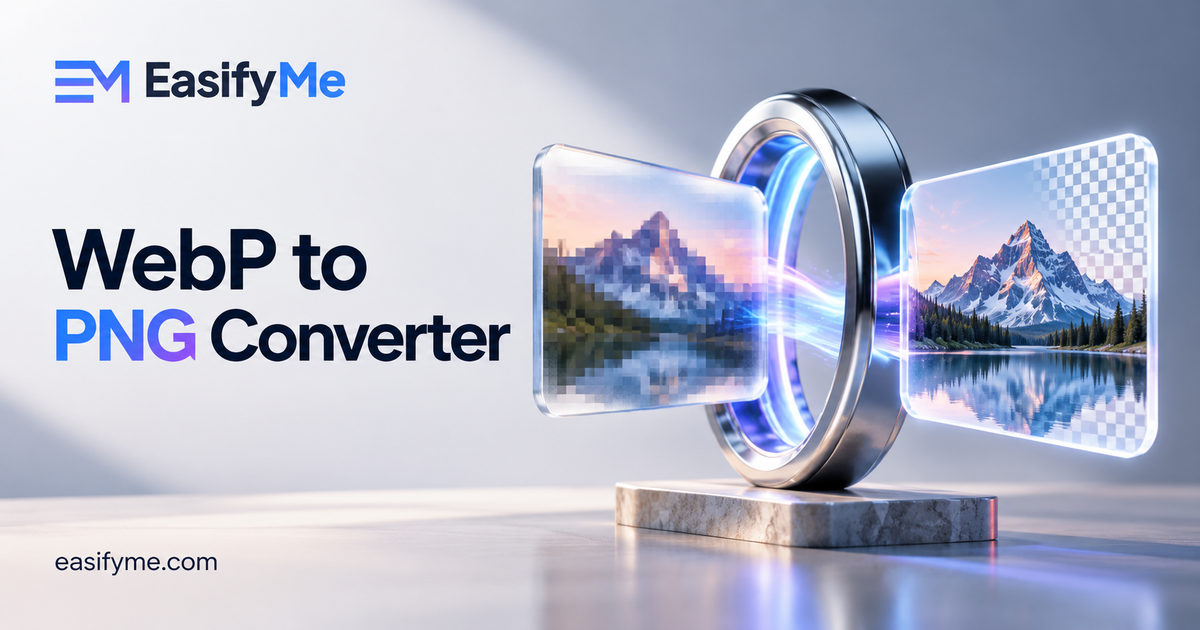
Quick Answer: A WebP to PNG converter turns a WebP image, the compact format many websites now serve, into a PNG that opens in almost any app. PNG is lossless and supports transparency, so the converted image keeps its quality and any transparent background. The PNG file will usually be larger. Use the free EasifyMe WebP to PNG Converter to convert WebP files in your browser in seconds.
Key Takeaways
- WebP is a modern web image format developed by Google. It is great for fast websites but not always supported by editing software, older apps and upload forms.
- Converting WebP to PNG keeps transparency and does not lose any more quality.
- Expect the PNG to be larger, often much larger for photos.
- Choose PNG for graphics, logos and screenshots; choose JPG if you only need a small photo.
- Browser-based conversion keeps your images on your device.
What Is a WebP File?
WebP is an image format created by Google in 2010. It can compress images in a lossy way, like JPG, or a lossless way, like PNG, and it supports transparency and animation. Because WebP files are usually smaller than equivalent JPG or PNG files, many websites serve images as WebP to load pages faster.
That is why you often end up with a .webp file when you save an image from a website, even if it looked like a normal photo.
Why Convert WebP to PNG?
WebP is well supported by modern browsers, but many other places still expect JPG or PNG:
- Older editing software may not open WebP, or may open it without full support.
- Upload forms, such as some job portals, government sites and marketplaces, accept only JPG or PNG.
- Office documents and presentations created in older versions may not accept WebP images.
- Print shops and clients usually expect a familiar format.
- Messaging and email recipients on older devices may not be able to preview WebP.
PNG is the safest target when the image has transparency or sharp edges, because it keeps both.
WebP vs PNG at a Glance
|
Feature |
WebP |
PNG |
|
Compression |
Lossy or lossless |
Lossless |
|
Transparency |
Yes |
Yes |
|
Animation |
Yes |
Only as the separate APNG variant |
|
File size |
Usually smaller |
Usually larger |
|
Support in editing apps and forms |
Growing, but patchy |
Nearly universal |
|
Best use |
Serving images on websites |
Editing, sharing graphics, uploads |
How to Convert WebP to PNG (Step by Step)
- Open the free WebP to PNG Converter.
- Drag your .webp files into the tool, or click to select them.
- Let the tool convert them in your browser.
- Check the preview, especially any transparent areas.
- Download your PNG files.
Because the images are processed in your browser, nothing is uploaded to a server. This is useful for private screenshots, ID photos or client work.
Worked Examples
Example 1: A logo saved from a website
You save a partner's logo from their site and get logo.webp, which your design tool refuses to open. Converting to PNG gives you a file that opens anywhere and keeps the transparent background around the logo.
Example 2: A product photo for a marketplace listing
A supplier sends product photos as WebP, but your marketplace only accepts JPG or PNG. PNG works, but a photo may become several times bigger. Here, converting to JPG is often the better choice, since photos rarely need transparency. If you do use PNG, run the result through the Image Compressor to bring the size down.
Example 3: An animated WebP
Animated WebP files behave like short GIFs. Converting to standard PNG usually keeps only a single frame. If you need the animation, keep the WebP or convert to a GIF or video format instead.
Try it free: Convert WebP images to PNG with transparency intact using the free WebP to PNG Converter, with no signup and no uploads.
How to Open a WebP File Without Converting
If you only need to view a WebP image, you may not need to convert it at all. All major modern browsers, including Chrome, Edge, Firefox and Safari, can display WebP: drag the file into a browser tab to open it. Many recent image viewers and editors also support WebP natively.
Convert when you need to edit the image in software that does not support WebP, upload it somewhere that only accepts JPG or PNG, or share it with someone who cannot open it. For photos without transparency, converting to JPG gives a smaller file than PNG.
Can I Avoid Getting WebP Files in the First Place?
Not reliably. Websites decide which format to send, and most modern browsers accept WebP, so that is what they receive. Some browser extensions let you save images in another format, but converting after download is simpler and works for any file.
Going the Other Way: PNG to WebP
If you run a website, WebP is your friend. Converting large PNG or JPG images to WebP can cut their size significantly and speed up page loads. Use the PNG to WebP Converter for this.
For iPhone photos in HEIC format, the HEIC to JPG Converter solves a similar compatibility problem. If the converted image is too large in pixels, resize it with the Image Resizer; our guide on resizing images without losing quality explains how to keep it sharp. You can find every image utility in the image tools hub.
Common Mistakes to Avoid
- Renaming .webp to .png. Changing the extension does not convert the file, and many apps will reject it or show an error.
- Converting photos to PNG when JPG would do. You get a much larger file with no visible benefit.
- Expecting animation to survive. Standard PNG holds a single frame.
- Re-converting repeatedly. Keep the original file and convert once to the format you need.
Frequently Asked Questions
How do I convert WebP to PNG for free?
Open a free online converter such as the EasifyMe WebP to PNG Converter, add your WebP files, and download the PNG versions. The conversion runs in your browser, so no software is needed.
Does converting WebP to PNG reduce quality?
No. PNG is lossless, so the converted image keeps exactly the quality of the WebP you started with. It cannot, however, restore detail lost if the WebP was lossy.
Does WebP to PNG keep transparency?
Yes. Both formats support transparency, so transparent backgrounds are preserved when you convert to PNG.
Why is my PNG larger than the WebP file?
WebP uses more efficient compression, and PNG stores every pixel losslessly. For photos, the PNG can be several times larger. Convert to JPG instead if you need a smaller photo.
Can I convert multiple WebP files at once?
Yes. You can add several WebP images together and convert them in one go, then download the PNG files.
Should I convert WebP to PNG or JPG?
Choose PNG for logos, graphics, screenshots and anything with transparency. Choose JPG for photos when you want a smaller file and do not need a transparent background.