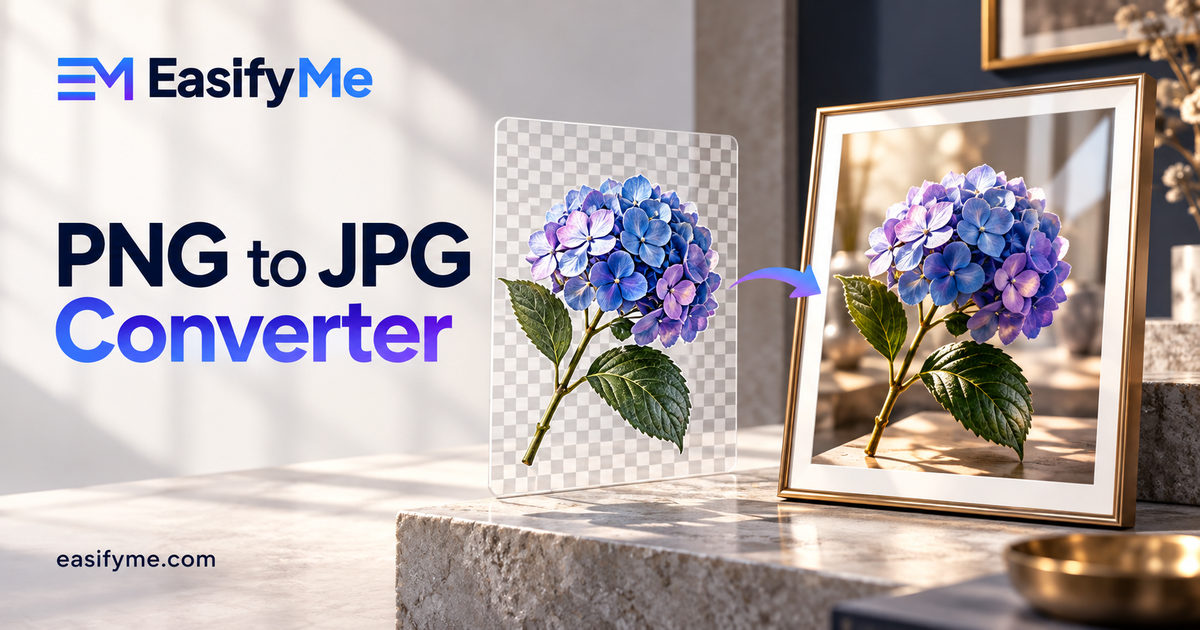
Quick Answer: A PNG to JPG converter turns lossless PNG images into compressed JPG files, often cutting file size by 70–90% for photos. JPG does not support transparency, so transparent areas are filled with a solid colour (usually white). Convert photos and screenshots that do not need transparency with the free EasifyMe PNG to JPG Converter, right in your browser.
Key Takeaways
- Convert PNG to JPG for photos when you need smaller files.
- Keep PNG for logos, icons and anything with transparency.
- JPG quality of 80–90% gives a great balance of size and clarity.
- Text and sharp edges can look fuzzy as JPG; check before publishing.
- WebP is often an even better option for websites.
PNG vs JPG: What's the Difference?
|
Feature |
PNG |
JPG (JPEG) |
|
Compression |
Lossless |
Lossy |
|
Transparency |
Yes |
No |
|
Best for |
Logos, icons, screenshots, graphics |
Photos, complex images |
|
File size for photos |
Large |
Small |
|
Quality after re-saving |
No loss |
Loses a little each save |
|
Browser support |
Universal |
Universal |
In short, PNG keeps every pixel exact, which is great for graphics but wasteful for photos. JPG is designed for photos and throws away detail your eyes are unlikely to notice.
When Should You Convert PNG to JPG?
- A photo was saved as PNG and is far too large for email or upload
- A website or form accepts only JPG
- You want faster-loading product or blog photos
- You are sharing many photos and want to save storage
When You Should Not Convert
- The image has a transparent background (logos, stickers, cut-out products)
- It is a screenshot with small text or UI elements that must stay crisp
- You still need to edit it many times; keep a PNG master copy
- It is a simple graphic with few colours, which PNG often stores efficiently
How to Convert PNG to JPG (Step by Step)
- Open the PNG to JPG Converter.
- Drag in one or more PNG files.
- Pick a quality level (80–90% is a good default).
- Choose a background colour for any transparent areas.
- Download the JPG files.
Try it free: Try it now with your own images using the free PNG to JPG Converter. Files are processed in your browser and never uploaded.
Worked Examples
Example 1: A photo saved as PNG
|
Version |
File size |
|
Original PNG photo (2400 × 1600) |
2.8 MB |
|
JPG at 90% quality |
about 450–600 KB |
|
JPG at 80% quality |
about 250–350 KB |
The 80% JPG is roughly 90% smaller and looks almost identical at normal viewing size.
Example 2: A transparent logo
A PNG logo with a transparent background becomes a logo on a white box after conversion. On a coloured website header, that white box looks wrong. Keep the logo as PNG, or convert it to WebP, which also supports transparency, with the PNG to WebP Converter.
Example 3: A text-heavy screenshot
A 600 KB PNG screenshot converted at 70% quality shrinks to around 150 KB, but small text develops fuzzy edges. Raising quality to 90% fixes most of it. If crispness matters more than size, keep it as PNG.
Need the Reverse?
If you want to edit a JPG with layers or add transparency later, convert it back with the JPG to PNG Converter. Note that this does not restore detail JPG compression already removed; it only stops further loss.
Get Even Smaller Files
Converting is the first step. For the lightest files:
- Resize to the display size with the Image Resizer
- Squeeze the JPG further with the Image Compressor
- Read our guide on resizing images without losing quality
What JPG Quality Setting Should You Use?
JPG quality is a trade-off between file size and visible detail. These ranges are a practical starting point:
|
Quality |
Best for |
What to expect |
|
90–100% |
Printing, archiving, client deliverables |
Near-original look, larger files |
|
80–85% |
Most website and blog photos |
Hard to tell apart from the original, much smaller |
|
70–75% |
Thumbnails, email attachments |
Small files, slight softness on close inspection |
|
Below 60% |
Rarely worth it |
Visible blocks and halos around edges |
Always keep your original PNG. Every time you re-save a JPG, it loses a little more detail, so edit from the PNG and export a fresh JPG when you need one.
Converting PNG to JPG on Windows, Mac and Phone
Windows: open the PNG in Paint, choose File → Save as → JPEG picture.
Mac: open the PNG in Preview, choose File → Export, set the format to JPEG and adjust the quality slider.
Phone or any device: use a browser-based tool such as the EasifyMe PNG to JPG Converter. It works on Android and iPhone without installing an app, and handles several files at once.
PNG vs JPG vs WebP at a Glance
If you are converting images for a website, WebP is worth considering alongside JPG:
|
Feature |
PNG |
JPG |
WebP |
|
Compression |
Lossless |
Lossy |
Lossy or lossless |
|
Transparency |
Yes |
No |
Yes |
|
Typical photo file size |
Largest |
Small |
Usually smallest |
|
Browser support |
Universal |
Universal |
All modern browsers |
|
Best for |
Logos, screenshots, graphics |
Photos, email, universal sharing |
Website images |
JPG remains the safest choice when you need a file that opens everywhere: email attachments, government portals, print shops and older software. WebP is the better choice for your own website, where every kilobyte affects loading speed.
Common Mistakes to Avoid
- Converting logos with transparency. You will get an unwanted background.
- Using very low quality. Below about 60%, photos show blocky artifacts.
- Deleting the original PNG. Keep it as a master copy in case you need edits later.
- Converting the same image back and forth. Each JPG save loses a little more detail.
Explore all our free image tools for converting, compressing and resizing, or read more guides on the EasifyMe blog.
Frequently Asked Questions
Does converting PNG to JPG reduce quality?
Slightly, because JPG is lossy. At 80–90% quality, the difference is usually not visible for photos.
What happens to transparency when converting PNG to JPG?
JPG cannot store transparency, so transparent areas are filled with a solid colour such as white.
Why is my PNG so much bigger than a JPG?
PNG stores every pixel exactly, which takes lots of space for detailed photos. JPG compresses photos much more efficiently.
Is PNG or JPG better for websites?
Use JPG (or WebP) for photos and PNG (or WebP) for logos and graphics with transparency.
Can I convert multiple PNG files at once?
Yes. The EasifyMe converter supports batch conversion in your browser, with no signup.
Can I convert a JPG back to PNG to restore quality?
No. Converting JPG to PNG stops further quality loss, but it cannot bring back detail that JPG compression already removed. Always keep your original PNG.
Is JPG or WebP better for websites?
WebP usually produces smaller files at similar quality and supports transparency, so it is often the better choice for your own website. JPG is safer when files must open on any device or older software.